If you use ChatGPT every day, you know the moment. You are certain a great answer exists, the pricing argument from three weeks ago, the prompt that finally worked, but finding it means scrolling one endless sidebar of auto-generated titles that all sound the same.
ChatGPT names every chat after your first message, so "Pricing strategy", "Pricing question" and "Quick pricing check" sit side by side, and none of them tells you which one held the breakthrough.
Everything else is chronology: yesterday sits on top, and whatever made last month valuable is already 40 scrolls down. Your history grows every day. Its findability shrinks at the same rate.
Folders are the obvious answer, which is probably what brought you here. So let us start with the uncomfortable truth and work toward the fix.
Does ChatGPT have folders?
No. ChatGPT folders are not part of the product. There is no native way to group chats by client, project or topic, no nesting, and no bulk filing.
After a few weeks of regular use, the sidebar holds hundreds of entries in one flat list.
The closest thing ChatGPT has to folders is Projects: containers that hold chats together with shared files and instructions. Projects are genuinely useful, but as you will see, they solve a different problem than folders do.
That leaves two realistic paths: work with the native features plus a few disciplined habits, or install a browser extension that adds a folder system directly to the ChatGPT sidebar. Both paths below, in that order.
Why ChatGPT folders are worth setting up
First, a quick case for why this is worth fixing at all. A folder system can sound like a nice-to-have. It stops being one the moment you notice what your chat history actually is: hundreds of hours of thinking, drafting and deciding that you already paid for with your time.
Organized, that history is an asset you keep drawing on. Buried in one endless sidebar, it might as well not exist.
- Reusing beats re-asking. Prompting ChatGPT again for something it already answered costs minutes every time, and the new answer is never quite the one you approved. A filed chat hands you the exact wording back.
- The problem compounds quietly. 20 chats need no system. 200 do. At 2,000, even search stops helping, because you no longer remember which words to search for.
- Your history becomes a knowledge base. With ChatGPT folders by client, project or topic, the sidebar stops being a stream of one-off conversations and starts behaving like a filing cabinet you can trust.
- Context switching gets cheap. Moving from one client to the next means opening a folder, not scrolling and guessing which "Pricing strategy" was the right one.
That is the payoff. Now to the two paths, starting with what ChatGPT ships out of the box.
The 4 features ChatGPT offers instead of folders
4 native features touch on organization. Here is what each one actually does, and where it stops:
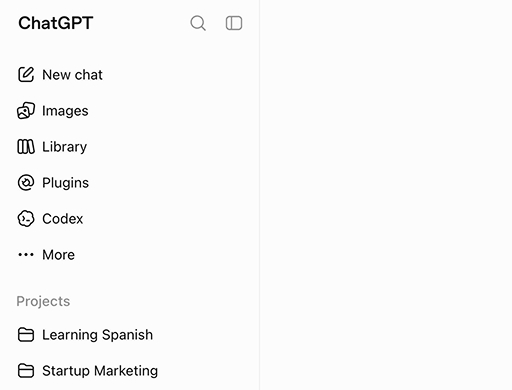
ChatGPT Projects
Projects are the feature most often mistaken for ChatGPT folders. A Project is a named container with its own files and custom instructions, and this is its real benefit: every chat you start inside a Project shares that context.
ChatGPT already knows the background, so you stop re-explaining it in every new conversation. You can also move existing chats into a Project. For active, focused work, this is the strongest native option.
The limits show up quickly, though. Projects cannot be nested, so there are no subfolders and no hierarchy.
A chat can only sit in one Project, and everything stays locked inside ChatGPT. And once you have more than a handful of Projects, the Project list itself becomes the next long, unsorted list.
Archive
Archiving removes a chat from the sidebar without deleting it. Archived chats live in a separate list inside the settings.
Archive is useful for decluttering, but it is the opposite of organizing: chats leave your sight instead of landing in a structure, and browsing the archived list later is noticeably harder than browsing the sidebar was.
Search
The sidebar search finds conversations by keyword. It works well when you remember a distinctive word from the chat or its title.
It fails in the common case: you remember that a great answer exists, but not what ChatGPT decided to title the chat. And even a successful search only brings you to the chat, not to the specific answer buried inside a long conversation.
Renaming chats
ChatGPT auto-titles every conversation from its first message, and you can rename any of them.
Deliberate names beat the auto-generated ones, which describe your first question rather than what the chat turned into. But renaming hundreds of existing chats is real work, and even perfectly named chats still sit in one flat list.
ChatGPT Projects vs. folders: what is the difference?
Projects are workspaces. Folders are organization. The distinction sounds subtle and changes everything in daily use:
| Capability | ChatGPT Projects | Real folders |
|---|---|---|
| Group chats by topic | Yes | Yes |
| Subfolders and nesting | No | Yes |
| Organize your existing history | Limited | Yes |
| Structure across other AIs | No | Yes |
| Shared context, files and instructions | Yes | No |
When Projects are enough
If you run two or three active workstreams and mostly need shared context and files in one place, Projects may cover you. Keep using them; nothing below replaces that strength.
Where Projects stop working
The moment you want your whole ChatGPT history organized the way a file system organizes documents, Projects start to fight you: no hierarchy, one Project per chat, and everything locked inside ChatGPT. They were built for starting focused work, not for filing what already exists.
Many people end up using both: Projects for active work, folders for everything.
How to organize ChatGPT chats without an extension: 3 workarounds
No install, no new tool, just habits. You can approximate ChatGPT folders to a surprising degree with three workarounds, as long as you go in knowing where each one bends:
1. Naming conventions
Prefix every chat title with a project or client tag, for example "[Acme] pricing draft" or "SEO: meta title ideas". Search then behaves almost like folders, because the prefix becomes a reliable filter.
It works, until the week gets busy: the system depends on you renaming every single chat, forever. The day you skip five, the gaps begin, and the hundreds of chats from before the convention stay invisible either way.
![A naming convention instead of ChatGPT folders: searching for the prefix [Acme] filters the sidebar to tagged chats like [Acme] Pricing draft, while an untagged chat stays invisible](assets/img/chatgpt-naming-convention.svg "ChatGPT naming convention")
2. Archive discipline
Keep only active conversations in the sidebar and archive everything else weekly. Your sidebar stays short and scannable, which genuinely feels better.
The catch: archive is a basement, not a filing cabinet. Nothing down there is grouped or structured, so the chats you archived in March are just as lost as they were in the sidebar, only now you have to remember they exist at all.
3. An external index
Keep a note in Notion, a doc, or bookmarks with links to your most important conversations, since every ChatGPT chat has a stable URL. This gives you a curated best-of layer on top of the chaos.
The catch: it is a second system you maintain by hand, it covers only what you remembered to add, and clicking a saved link still drops you at the top of a long chat rather than at the answer you saved it for.
All three workarounds share the same DNA: they cost ongoing discipline, and they still leave you without nesting, without a real structure, and without a way back to the answer inside a chat. That is exactly the gap an extension closes.
The direct route: real ChatGPT folders with a simple browser extension
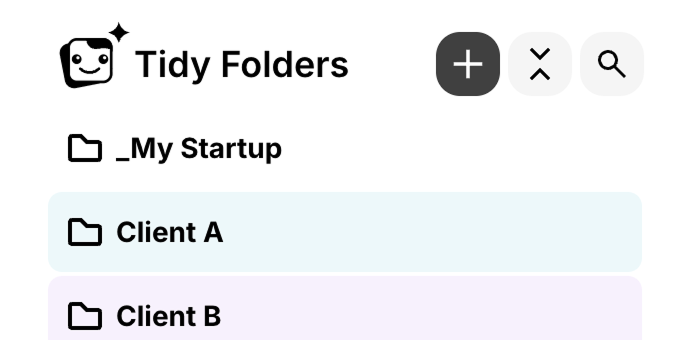
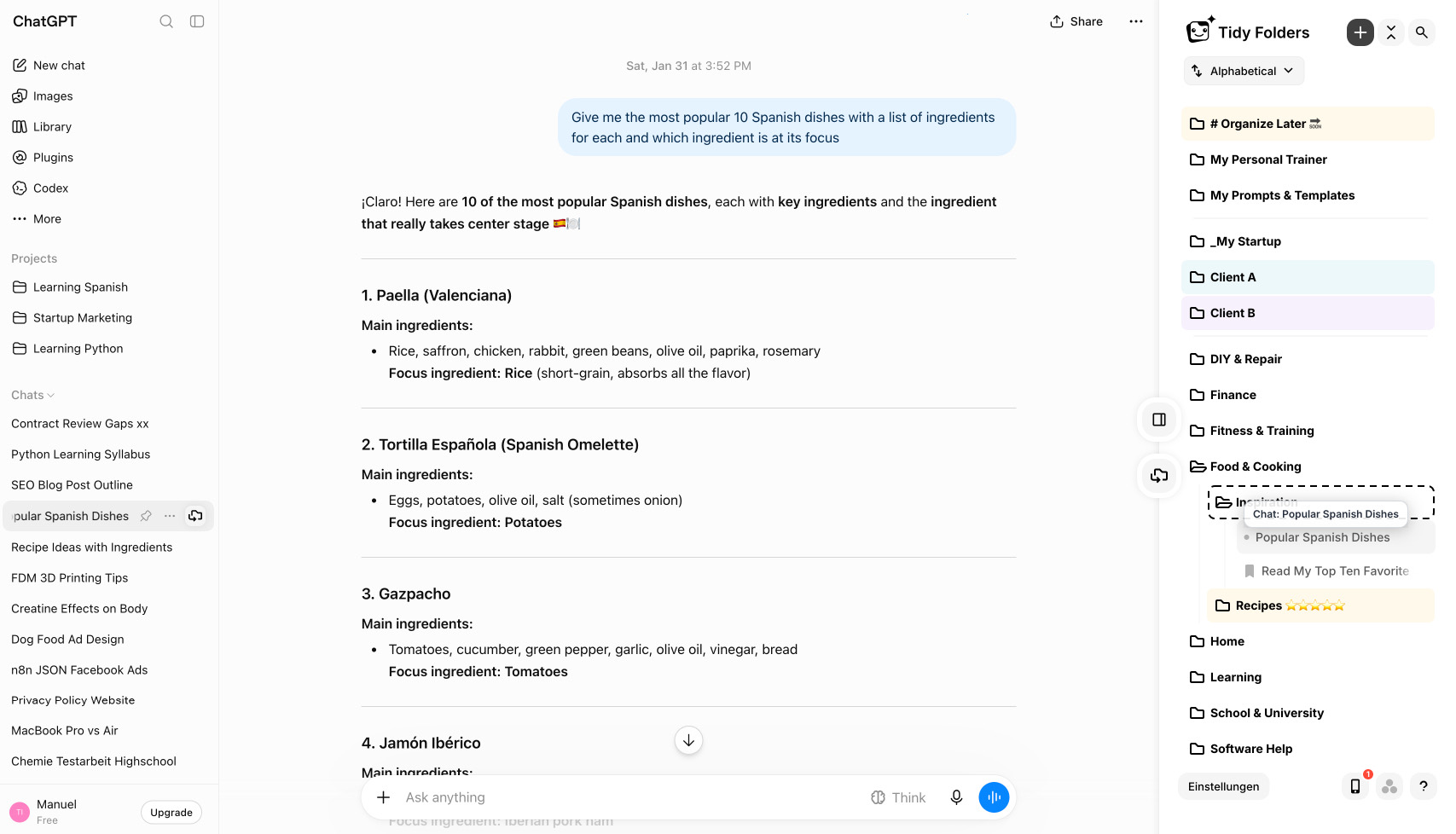
A browser extension can do what habits cannot: change the sidebar itself. Tidy Folders is a free extension that adds a real folder system to ChatGPT, directly in the interface you already use. What that means concretely:
- Folders and subfolders with drag and drop: file chats by client, project or topic, nest as deep as your work requires, reorder any time.
- Colors and dividers: give each folder a color from a fixed palette and pull dividers between groups of folders, so the sidebar reads at a glance instead of as one long list.
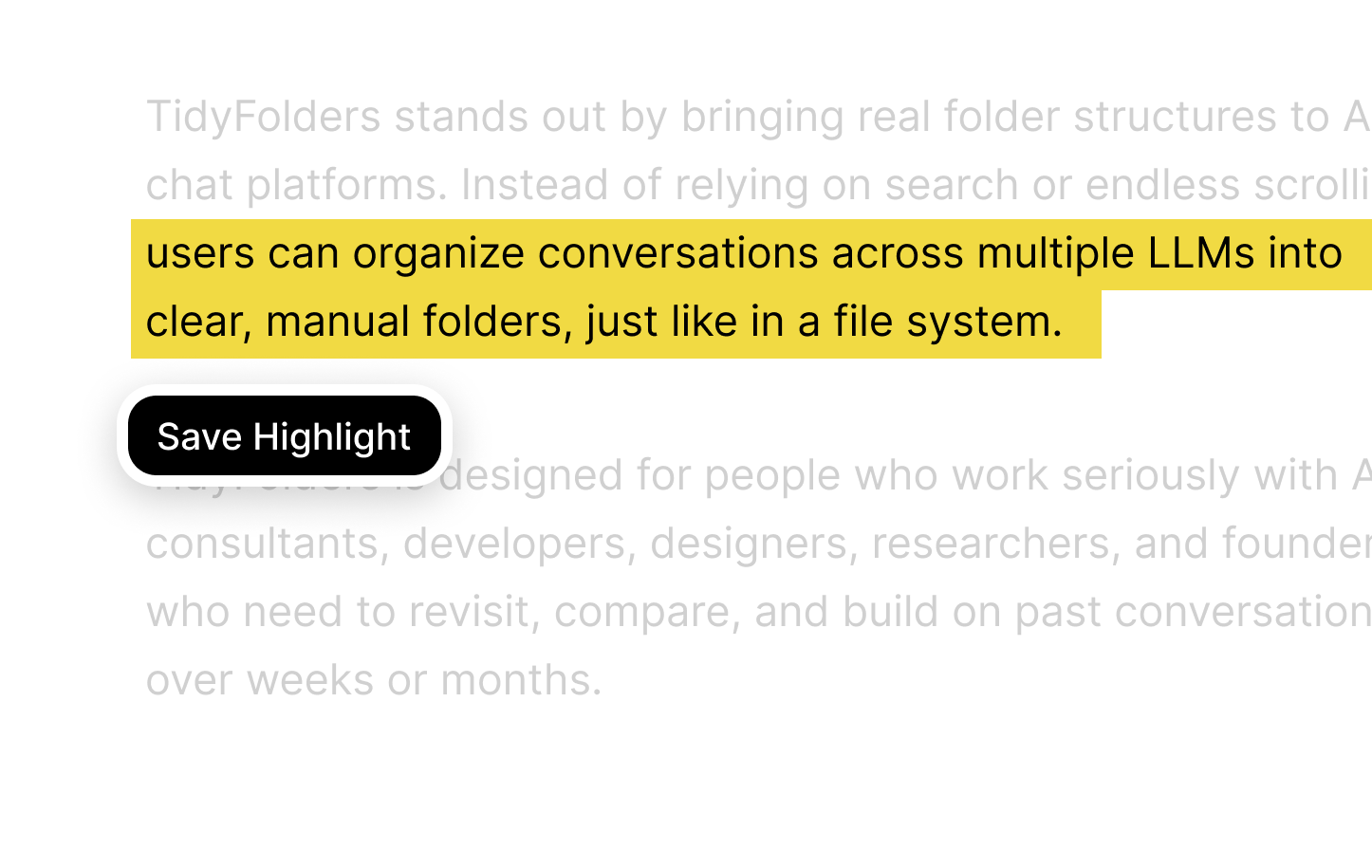
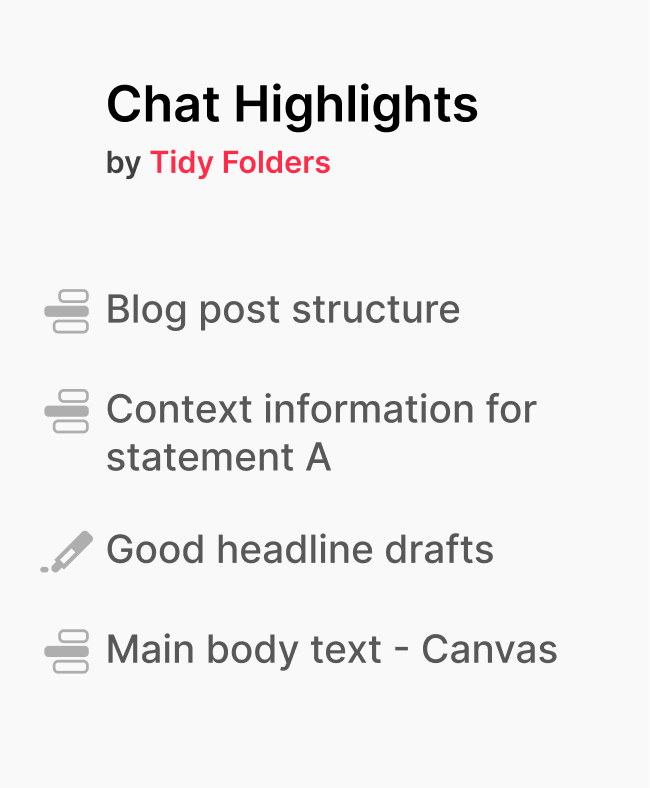
- Text highlighting: mark the key passages of an answer visually, exactly like a highlighter on a page. Every mark doubles as a link: one click and you are back at that exact spot, even in a 200-message conversation.
- Works with Projects, and on them: Tidy runs alongside everything native, and folders can even organize your Projects themselves, so chats and Projects live in one structure.
The extension is free to install and use.
How to create folders in ChatGPT (4 quick steps)
With the extension installed, creating ChatGPT folders takes about a minute:
- Install Tidy Folders for your browser.
- Open chatgpt.com. The folder panel appears inside the interface, no extra window or app.
- Create your first folder, then drag conversations in from the sidebar. Add subfolders where a topic grows.
- Open any answer worth keeping and highlight the passage that matters, like a highlighter. Every mark is saved, so one click brings you back to that exact spot whenever you need it again.
Finding the answer inside the chat: text highlighting
Folders solve half the problem: they bring you back to the right chat. But the right chat can still be 200 messages long, and the one answer you need is somewhere in the middle.
That is what text highlighting is for. Select the passage that matters and mark it, exactly like a highlighter on paper. The text stays visibly marked in the conversation, and every mark doubles as a link: one click, and you are at that exact spot again.
In practice this is where the daily time savings come from. The approved wording, the fix that worked, the clause explanation: each one click away instead of a scroll session.
How to organize your existing ChatGPT history in 30 minutes
A large backlog feels overwhelming, so do not try to sort everything at once. This triage works in about 30 minutes:
- Archive the dead weight first. Anything you will clearly never open again leaves the sidebar. Usually that is a third of the list.
- Create 5 to 7 top-level folders, matching how you already think about your work: clients, projects, or life areas. Resist creating 20.
- File the last 30 days. Recent chats are the ones you will actually reopen, so they earn structure first. Work backwards from there in short sessions.
- Highlight as you file. When you scroll past an answer you have already referenced twice, mark it now. Future you gets a one-click jump-link instead of a scroll session.
4 rules for a ChatGPT folder structure that actually works
A few principles that keep your ChatGPT folders useful after the first week:
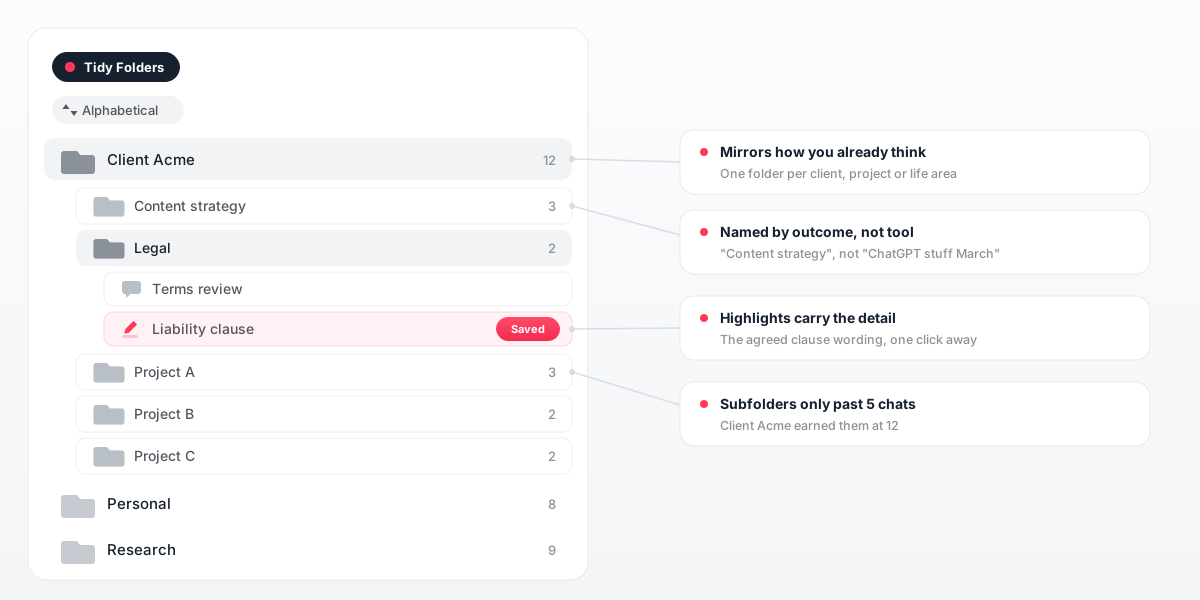
- Mirror how you already think. If your day is organized by client, your folders should be too. Do not invent a taxonomy you have to learn.
- Start shallow. One level of folders is enough at the beginning. Add a subfolder only when a folder passes roughly 5 chats.
- Name by outcome, not by tool. "Website relaunch" beats "ChatGPT stuff March".
- Let highlights carry the detail. Folders answer "which chat was that?", highlights answer "where in the chat was it?". Using both is what makes the structure fast.
Colors and dividers add a visual layer on top of these rules. Give the three or four ChatGPT folders you open every day a color of their own, and group the rarely used ones behind a divider: the structure stays the same, but your eyes land on the right folder before you have read a single name.
9 ChatGPT folder examples: what people actually organize
Folder structures are personal, but the patterns repeat. These are the setups we see most often, each one an answer to "how should I organize my ChatGPT chats". Open the ones that sound like your week:
Client work: one folder per client, subfolders per deliverable
A freelancer's ChatGPT history is really a stack of client files. A folder per client, with subfolders like Pricing, Drafts and Research, turns it back into one. Highlights do the fine-grained work: the approved tagline, the agreed scope wording, the sentence the client actually signed off on, each a single click away inside a long chat.
Content and SEO: campaigns, briefs and drafts in one place
Organize ChatGPT chats by campaign or by channel, with subfolders for briefs, outlines and drafts. When a headline variant finally wins, highlight it: next quarter you will want the winning pattern back, not the whole brainstorming session it came from.
Coding: a folder per project, a highlight on the fix that worked
Debugging chats age badly in a flat sidebar because their titles all look alike. A folder per repository or feature keeps them sorted, and a highlight on the answer that actually fixed the bug saves the next you from re-reading a 60-message session to find it.
Studying and research: one folder per course or paper
File explainer chats by course, topic or paper. The highlights become your revision layer: every marked passage is a jump-link back to the full explanation, which beats copying summaries into yet another notes app.
Job hunting: applications, CV drafts and interview prep
One folder per application keeps the tailored CV wording, the cover letter drafts and the interview prep for each company together. After the process, the folder doubles as a record of what you claimed where, which is exactly the thing you otherwise forget.
Product work: features, user feedback and copy variants
A folder per feature collects the naming discussions, the UX copy variants and the summarized user feedback in one place. When someone asks why the button says what it says, the reasoning is filed, not folklore.
Running a shop: product descriptions, ads and support replies
Product description chats, ad copy variants and customer reply templates each get their own folder. The store's voice stays consistent because the reference examples are always the same filed chats, not whatever the sidebar happens to surface.
Personal life: travel, health, home and money questions
The personal sidebar is often the most chaotic one: trip planning next to a health question next to dinner ideas. ChatGPT folders per life area, like Travel, Health, Home and Finances, keep them apart, and sensitive chats stop surfacing mid-scroll during a screen share.
A prompt library: keep the prompts that actually worked
When a prompt produces exactly what you wanted, that chat becomes a template. A Prompts folder collects them, and a highlight on the prompt itself means you copy it in seconds instead of rebuilding it from memory.
Different setups, one pattern: the folders mirror how you already think about your work, and the highlights carry the detail. That is also why this structure survives busy weeks, unlike naming conventions.
ChatGPT folders across your other AIs
Most people who organize ChatGPT also use Claude, Gemini, DeepSeek or Grok, which means the same chaos exists in four other sidebars.
Tidy runs one folder system across all 5: chats from different AIs can live in the same folder, so a project folder holds the ChatGPT drafts next to the Claude research. That is the part no native feature can replicate. More at tidyfolders.com.
ChatGPT folders: FAQ
Does ChatGPT have a folder feature?
No. ChatGPT offers Projects, archive, search and renaming, but no folder system with nesting. ChatGPT folders can be added with a browser extension such as Tidy Folders.
How do I create folders in ChatGPT for free?
Install the free Tidy Folders extension, open chatgpt.com, and create folders directly in the sidebar. The extension is free to install and use.
Are ChatGPT Projects the same as folders?
No. Projects are workspaces with shared files and instructions, ideal for active work. They have no nesting, hold each chat only once, and were not designed for filing a large history.
Can I move old chats into a ChatGPT Project?
Yes, existing chats can be moved into a Project, and every chat inside shares the Project's context. What Projects will not give you is hierarchy or one structure across your whole history; that is where folders come in.
Can I organize ChatGPT chats without installing anything?
To a degree. Naming conventions, archive discipline and an external link index all help, but none of them provide nesting, a real folder structure, or jump-links to answers.
Do ChatGPT folders work on mobile?
Browser extensions run in desktop browsers. On the phone, a practical workflow is renaming or flagging important chats in the app and filing them into folders later at your desk.
How do I find old ChatGPT conversations?
Natively you have search and scrolling. With Tidy Folders, a chat filed in a folder stays one click away instead, and a highlight brings you back not just to the chat but to the exact answer inside it.
Why did my ChatGPT chats disappear?
In most cases nothing is deleted: the chat was archived, or you are signed in to a different account. Check the archived chats list in the settings first. A chat filed in a folder also has a fixed place, so it cannot quietly vanish from view the way sidebar entries do.
Can I pin or favorite chats in ChatGPT?
Not natively. ChatGPT has no pin or favorite button for conversations. Folders are the closest equivalent: a small folder at the top of your list does the same job, and a highlight can pin the exact answer inside a chat.
Can you color-code your ChatGPT chats?
Not natively. With the Tidy Folders extension, every ChatGPT folder can take a color from a fixed palette, and dividers group folders into visual blocks, so the sidebar shows your priorities at a glance.
Does archiving a ChatGPT chat delete it?
No. Archived chats are only hidden from the sidebar and remain accessible in the settings under archived chats.
Can I export my ChatGPT history?
Yes, ChatGPT offers a data export in the settings. An export is a backup, though, not an organization system: for finding answers day to day, folders inside the interface are the faster route.
Are ChatGPT folder extensions safe?
Check what an extension stores before installing it. Tidy never reads or transmits your full conversations and only stores the highlights you choose to save.
Is there a ChatGPT folder extension for Chrome?
Yes. Tidy Folders is a free ChatGPT folder extension for Chrome, and it also runs in Brave, Edge, Safari and Firefox. Brave installs via the Chrome Web Store listing.